Online Manual
Group Discovery & Access Request
The Group Discovery & Access Request feature helps users find groups they don’t currently manage and request access to them. Administrators can easily review and approve/deny these requests. This feature streamlines the group access process and reduces manual effort.
For Users: Discovering and Requesting Access to Groups
Finding Groups
- Access the Group Discovery feature:
- From the main Groups view, click on the “Discover Groups” button in the top navigation bar
- Alternatively, click on the notification icon (envelope) in the top navigation bar and select “Discover Groups” from the dropdown menu
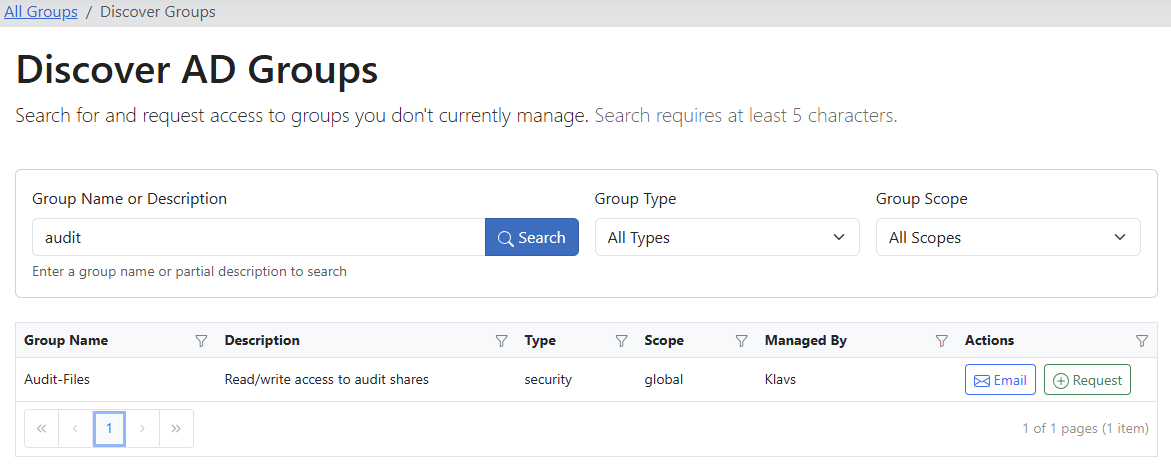
- Search for groups:
- Enter a search term in the search box (minimum characters required as configured by your administrator)
- Optionally filter by Group Type (Security/Distribution) and Group Scope (Global/Universal/Domain Local)
- Click the “Search” button to find matching groups
- Review search results:
- Results will display in a grid showing group details like Name, Description, Type, Scope, and Manager
- Groups you already manage will not appear in the results
Requesting Access
- Request access to a group:
- Find the group you want access to in the search results
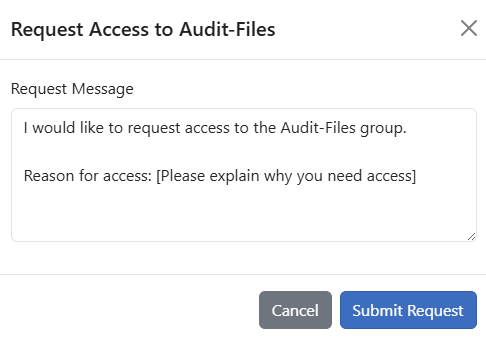
- Click the “Request” button in the Actions column
- In the request modal that appears, enter a reason for your request
- Click “Submit Request”
- Email the manager directly:
- If enabled by your administrator, you can also click the “Email” button to compose an email to the group manager
- This will open your default email client with a pre-populated email
Managing Your Requests
- View your pending requests:
- Click on the notification icon (envelope) in the navigation bar
- Select “My Requests” from the dropdown menu
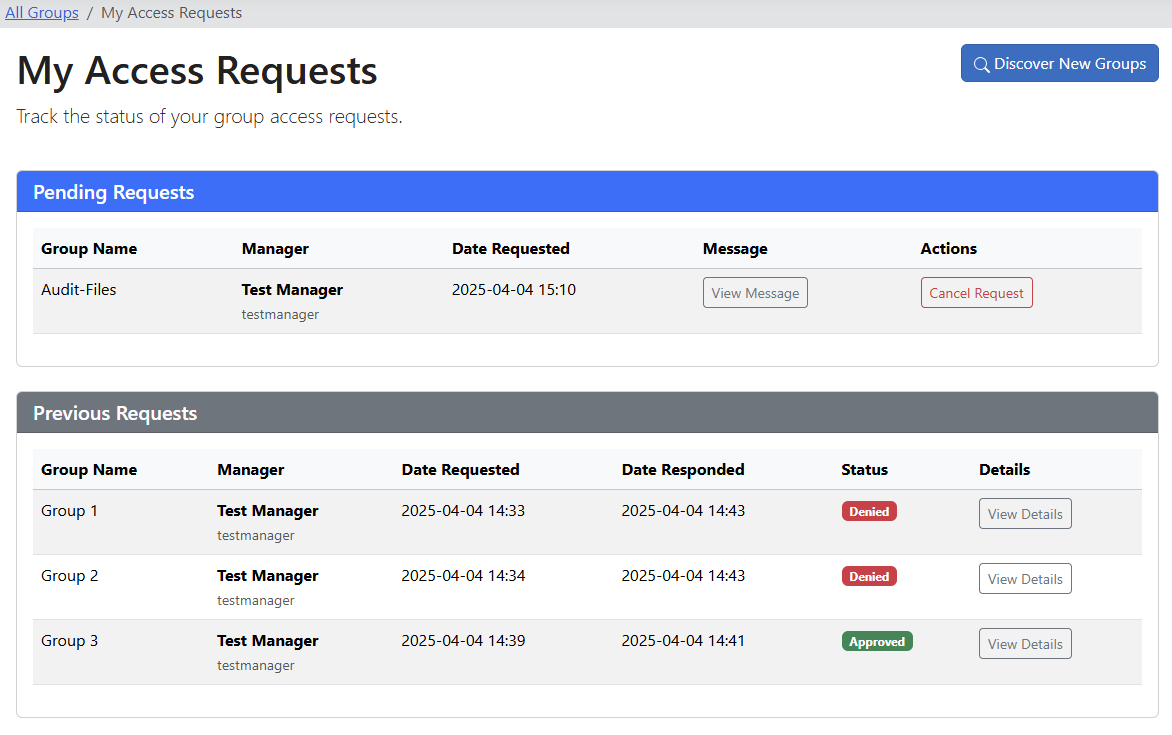
- The page displays all your pending and completed requests
- Cancel a pending request:
- From the My Requests page, find the request you want to cancel
- Click the “Cancel Request” button
- Confirm the cancellation in the dialog that appears
- View request details:
- For completed requests (approved, denied, or cancelled), click “View Details” to see the full request information
- This includes your original message and the manager’s response
For Managers: Handling Access Requests
Reviewing Requests
- Check for new requests:
- When you have pending requests to review, a notification badge will appear on the envelope icon in the navigation bar
- Click on the notification icon and select “Manage Requests” from the dropdown

- Review pending requests:
- The Manage Requests page shows all pending requests at the top
- Each request shows the requester’s name, group name, date requested, and message
- Click “View Message” to see the full request message if it’s lengthy
Approving or Denying Requests
- Approve a request:
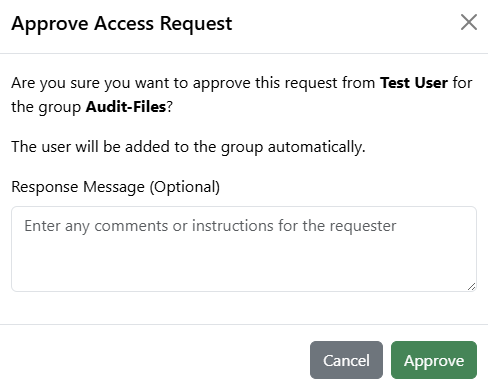
- Click the “Approve” button for the request you want to approve
- Optionally enter a response message to the requester
- Click “Approve” to confirm
- The user will be automatically added to the group
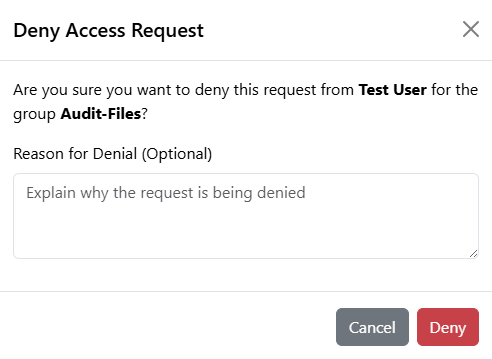
- Deny a request:
- Click the “Deny” button for the request you want to deny
- Enter a reason for the denial (recommended for good user experience)
- Click “Deny” to confirm
- View request history:
- Scroll down to the “Previous Requests” section to see all completed requests
- Click “View Details” to see the full details of any request
For Administrators: Configuring the Feature
Enabling and Configuring
- Access the admin settings:
- Log in as an administrator
- Navigate to the Admin interface
- Select “Group Discovery” from the navigation menu
- Basic Configuration:
- Enable Group Discovery: Toggle this option to enable/disable the entire feature
- Enable Direct Email Requests: Allow users to directly email group managers
- Enable In-App Requests: Allow users to submit requests through the application
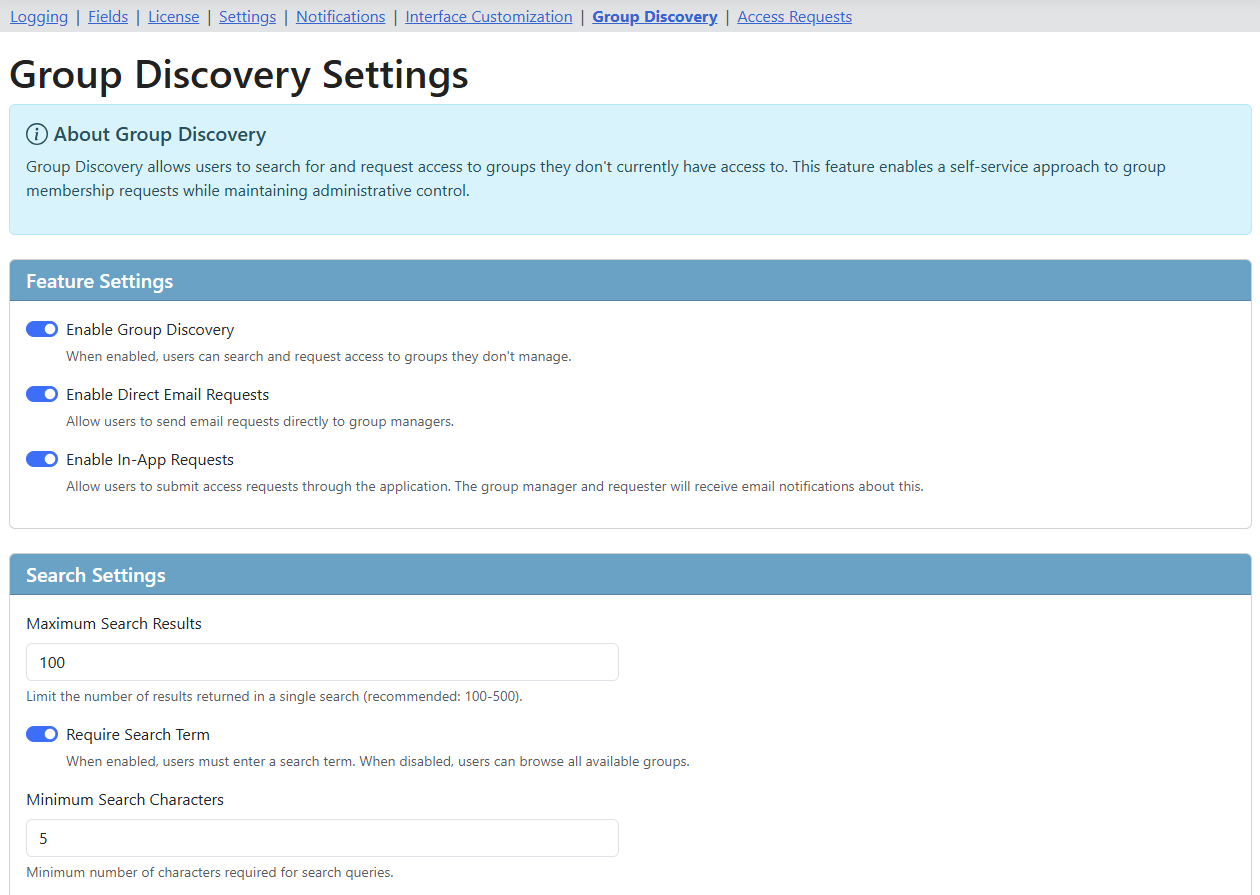
- Search Settings:
- OU Filter: Specify which OUs users can discover groups from (semicolon-separated list)
- Excluded OUs: Specify OUs to exclude from discovery (semicolon-separated list)
- Maximum Results: Limit the number of search results (default: 100)
- Require Search: Force users to enter a search term rather than browsing all groups
- Minimum Search Characters: Set the minimum required characters for search (default: 3)
Monitoring Requests
- View all access requests:
- From the Admin interface, navigate to “Access Requests”
- This page shows statistics and a list of all requests in the system
- Filter and search requests:
- Use the search box to find specific requests
- Filter by status (Pending, Approved, Denied, Cancelled)
- Sort by any column by clicking the column header
- Process requests manually:
- As an administrator, you can approve or deny any request in the system
- Use the “Process” button to handle requests that might be stuck or orphaned
Troubleshooting and Edge Cases
Common Issues for Users
- Cannot find a group:
- Check your search term - try using different keywords
- The group might be in an OU that is excluded from discovery
- The group might not have a manager set in Active Directory
- Cannot request access:
- The group might not have a manager configured in Active Directory
- Both direct email and in-app requests might be disabled by the administrator
- Request taking too long:
- Reach out to the group manager directly if your request has been pending for a long time
- The manager might not have received the notification or might be unavailable
Common Issues for Managers
- Cannot approve a request:
- You might not have sufficient permissions to add members to the group
- The requester’s account might have issues (disabled, locked, etc.)
- Try refreshing the page and attempting again
- Missing notifications:
- Check your email settings and spam folder if email notifications are configured
- Verify that the correct email address is set in your Active Directory profile
Common Issues for Administrators
- Feature not working correctly:
- Verify that all required settings are configured properly
- Check server logs for any error messages
- Ensure the application has proper permissions to query and modify Active Directory
- Email notifications not sending:
- Verify SMTP settings in the Notifications section
- Check server logs for any email-related errors
- Performance issues with large directories:
- Consider limiting search results to a lower number
- Use more specific OU filters to reduce the search scope
- Add exclusions for large OUs that aren’t relevant for group management
Best Practices
- For Users:
- Always provide a clear reason for your access request
- Include your role and specific need for access in your request message
- Follow up with the manager directly for urgent requests
- For Managers:
- Process requests promptly to avoid backlogs
- Always provide a reason when denying a request
- Regularly review your managed groups for unnecessary members
- For Administrators:
- Configure notifications to ensure timely processing of requests
- Regularly audit the request log to identify patterns or issues
- Gather feedback from users and managers to optimize the configuration
Security Considerations
- Request logging:
- All requests are logged in the audit trail (if logging is enabled)
- Logs include who requested access, who approved/denied it, and when
- Permission checking:
- The system verifies that managers have the appropriate permissions before allowing them to approve requests
- Administrators can still process requests even if the original manager lacks permissions
- Email security:
- Direct email links contain minimal information about the group
- In-app requests are preferred for sensitive groups as they provide better tracking and security