Online Manual
Filter System
Filters let you narrow report results to specific objects in Active Directory. Instead of generating a report of all users and then scrolling through thousands of rows, you can define conditions that select only the objects you need — for example, “users in the Sales department whose password expires in the next 14 days.”
Filters are part of custom report forms and are configured through the Filter Manager. This is a Pro feature.
Opening the Filter Manager
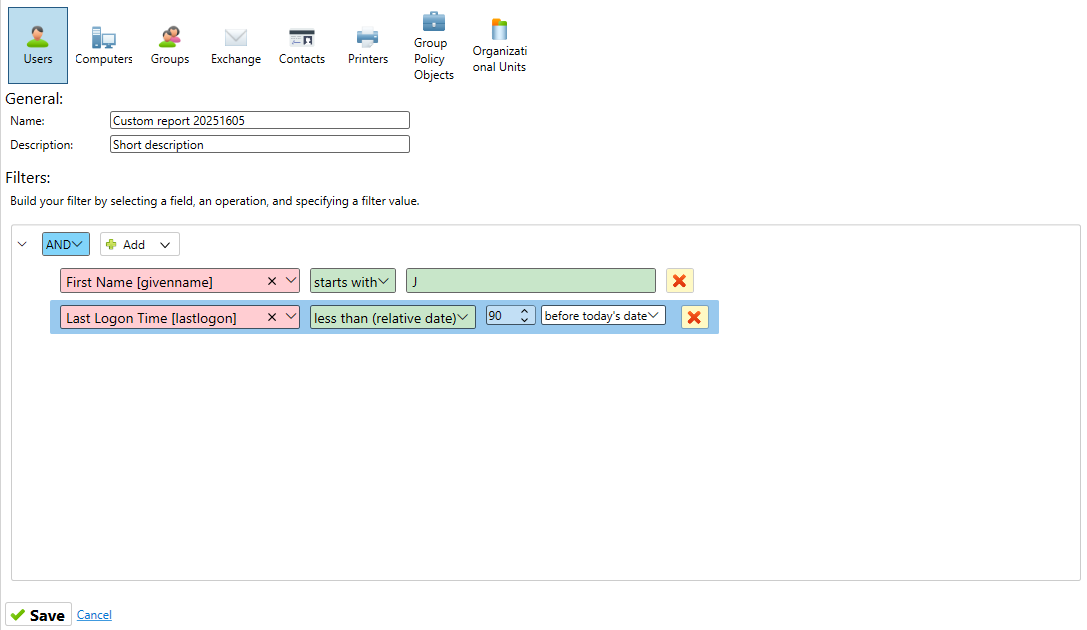
When creating or editing a custom report form, click the Filter button (or the gear icon next to the filter description) to open the Filter Manager. The Filter Manager shows a tree view of your filter conditions.
How Filters Work
A filter is built from two building blocks: filter groups and filter criteria.
Filter criteria are individual conditions. Each criterion specifies a field, an operation, and a value. For example: “Department equals Sales” or “Last logon before 2025-01-01.”
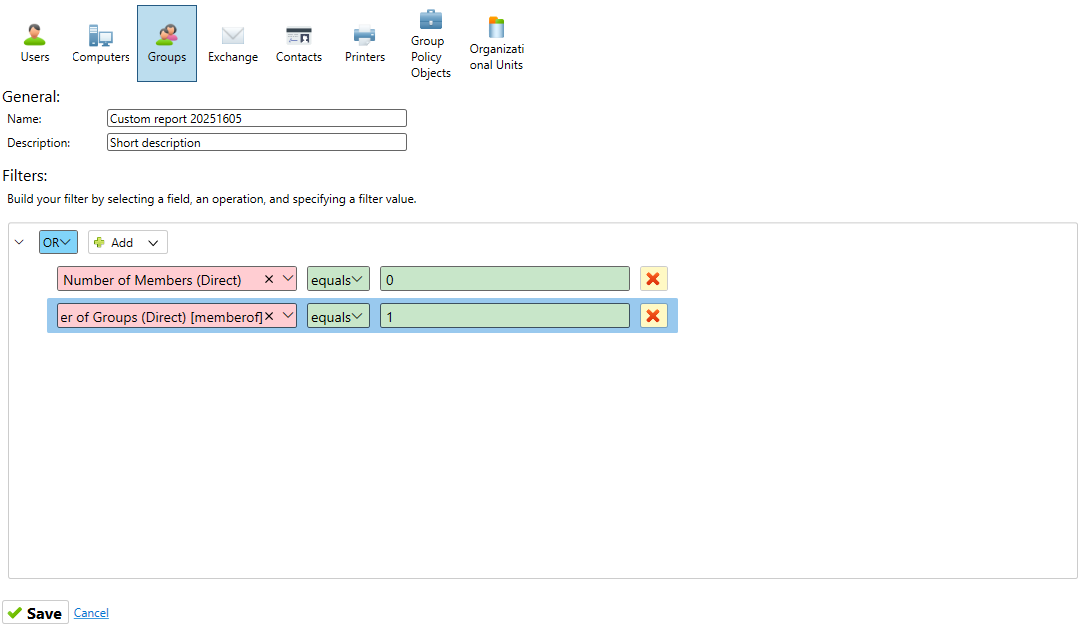
Filter groups combine criteria using a logical operator — either AND (all criteria must match) or OR (at least one criterion must match). Groups can be nested inside other groups, allowing you to build complex logic.
For example, this filter finds disabled users in either the Sales or Marketing department:
AND
├── Account Disabled = True
└── OR
    ├── Department equals "Sales"
    └── Department equals "Marketing"
Building a Filter
- The Filter Manager starts with a root group (AND or OR). Click the operator label to toggle between AND and OR.
- Click Add → Criteria to add a condition to the current group.
- For each criterion, select:
- Field — The AD attribute to filter on (chosen from a dropdown of all available fields for the report type)
- Operation — The comparison to apply (see the operations table below)
- Value — The value to compare against. The value input changes depending on the field type — a text box for string fields, a date picker for date fields, an AD object browser for DN fields, etc.
- Click Add → Group to add a nested group with its own AND/OR operator and criteria.
- Use the delete button to remove criteria or groups.
Available Operations by Field Type
The operations available for a criterion depend on the data type of the selected field:
| Field type | Available operations |
|---|---|
| Text (name, email, department, description, etc.) | Contains, Not Contains, Equals, Not Equals, Starts With, Ends With, Is Empty, Not Empty |
| Date (created, modified, password last set, account expiry) | Before, After, Between, Last N Days, Is Empty, Not Empty |
| AD Date (lastLogonTimestamp, pwdLastSet as timestamp) | Before, After, Between, Last N Days, Is Empty, Not Empty |
| Boolean / Account flags (disabled, locked, password never expires, smart card required, etc.) | Is (True / False) |
| DN / AD Object (manager, managed-by, alternate recipient) | Is, Is Not, Is Empty, Not Empty — uses AD object browser to pick the value |
| Group membership (memberOf direct, inherited, by type/scope) | Contains, Not Contains, Is Empty, Not Empty — uses AD object browser to select a group |
| Group members (members direct, inherited, all) | Contains, Not Contains — uses AD object browser |
| Numeric / Count (member count, child count, bad password count) | Equals, Not Equals, Greater Than, Less Than |
| Container / Parent (parent OU, parent container) | Is, Is Not |
| Exchange protocol flags (OWA, POP3, IMAP4, MAPI enabled) | Equals, Not Equals |
| GPO links | Contains, Not Contains |
| Primary group | Is, Is Not |
| SID type | Is, Is Not, Is Empty, Not Empty |
LDAP Filters vs. Local Filters
AD FastReporter uses two types of filtering internally:
LDAP filters are sent directly to the domain controller as part of the LDAP query. These are highly efficient because the DC handles the filtering — only matching objects are returned over the network. Most text, date, boolean, and account flag filters use LDAP filtering.
Local filters are applied after the data is retrieved from AD. These are used for fields whose values are calculated by AD FastReporter rather than stored directly in AD — for example, inherited group memberships, member counts, manager descriptions, Exchange protocol states, and BitLocker information. Local filters work correctly but don’t reduce the network load since all objects must be retrieved first.
You don’t need to think about this distinction when building filters — AD FastReporter automatically determines which filtering method to use for each criterion. However, if you notice that a filter on a calculated field doesn’t speed up report generation, this is why.
Filter Examples
Users whose accounts are disabled and were created more than a year ago:
AND
├── Account Disabled = True
└── When Created — Before — [date one year ago]
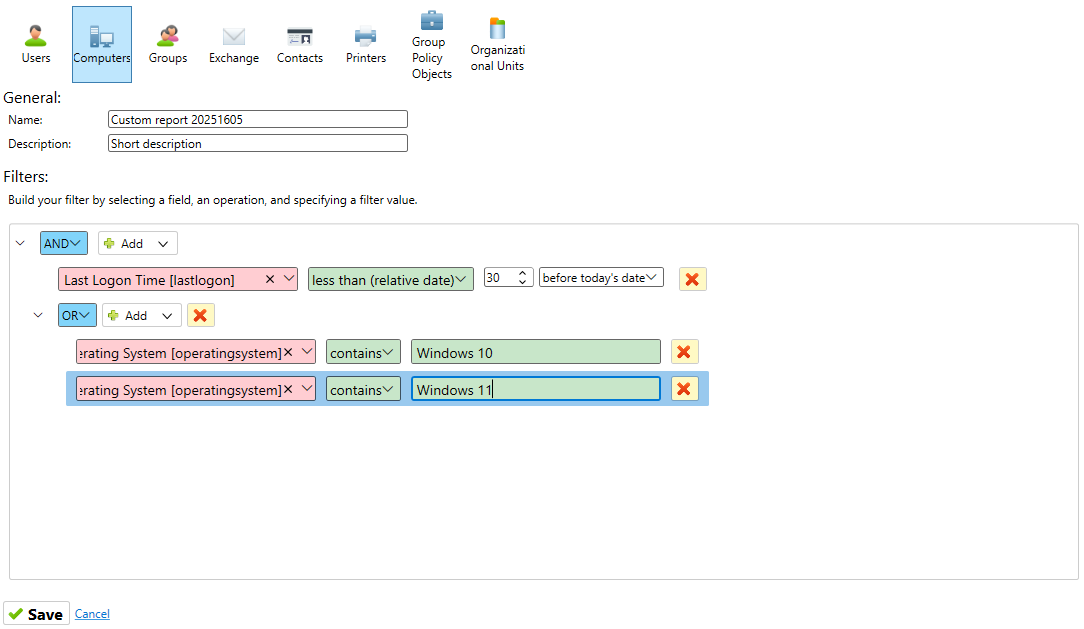
Computers running Windows 10 or Windows 11 that haven’t logged on in 90 days:
AND
├── Last Logon — Before — [date 90 days ago]
└── OR
    ├── Operating System — Contains — "Windows 10"
    └── Operating System — Contains — "Windows 11"
Groups that have no members (empty groups):
AND
└── Members (Direct) Count — Equals — 0
Users in a specific OU who must change their password at next logon:
AND
├── Parent OU — Is — "OU=Sales,DC=example,DC=com"
└── Must Change Password at Next Logon = True
Tips
- Start simple — add one or two criteria and generate to verify the results, then add more conditions.
- Use the OR group when you need “any of these conditions.” Use AND (the default) when all conditions must be true.
- For membership filters, the AD object browser lets you search for and select a specific group by name — you don’t need to type the distinguished name manually.
- Filters are saved as part of the custom report form. You can create multiple custom forms with different filters for the same report type to cover different scenarios.