Online Manual
Configuring the Self-Service Portal
All portal configuration lives on one admin page: Self-Service Portal in the admin navigation (/admin/SelfServiceSettings). The page is organized as a set of collapsible panels. This guide walks through each panel and then through a recommended setup order.
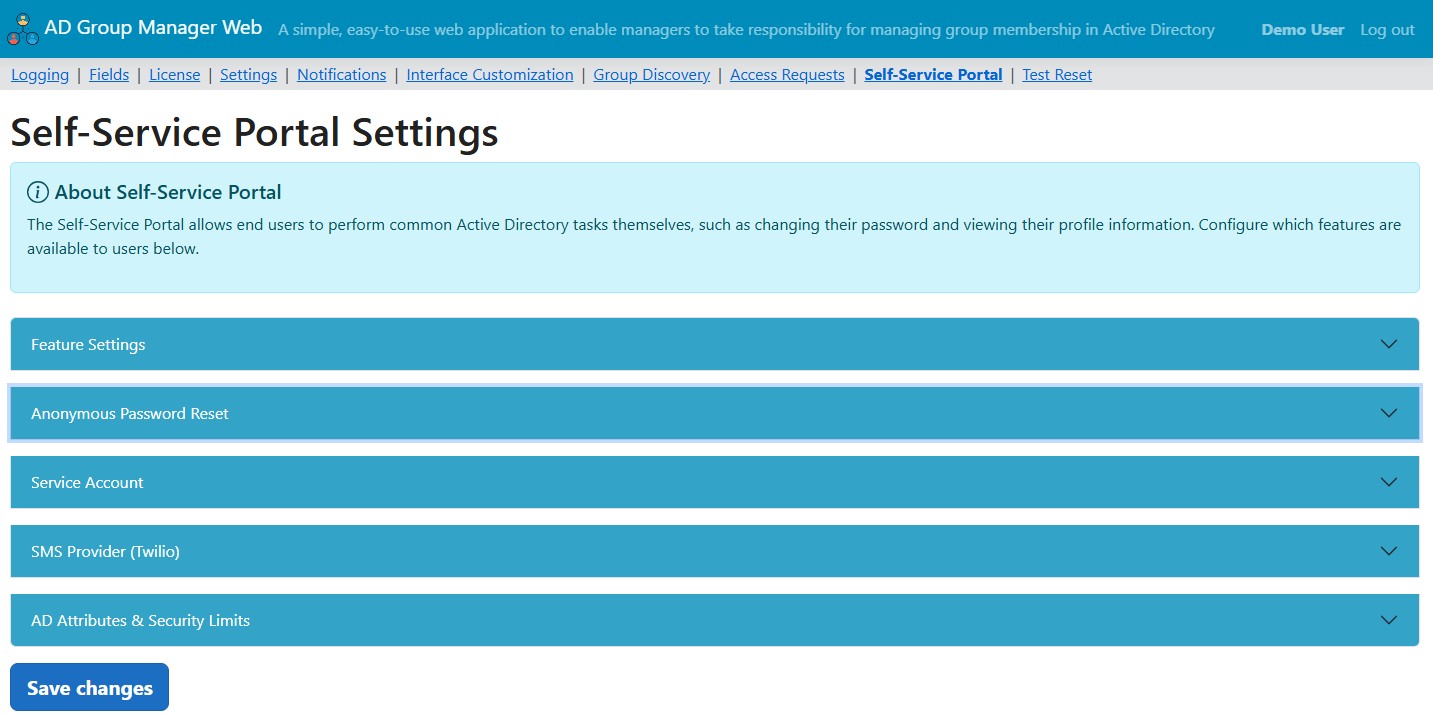
The settings panels
Feature Settings
Toggle the signed-in features on or off, independently:
| Setting | Default | What it does |
|---|---|---|
| Allow Password Change | On | Signed-in users can change their AD password through the portal. |
| Allow Profile View | On | Users can view their AD profile attributes (name, department, title, and so on). |
| Editable profile fields | (empty) | A comma-separated allow-list of attributes users may edit. Leave empty to make the profile view-only. The server enforces this list — a user can only change attributes you name here. |
In environments where an HR system feeds Active Directory, leave Editable profile fields empty and keep the profile view-only plus password reset.
Anonymous Password Reset
This panel controls the locked-out recovery flow — the feature that works before the user can sign in.
| Setting | Default | What it does |
|---|---|---|
| Allow anonymous password reset | Off | Master switch for the public reset page. When enabled, the “Forgot password?” link appears on the sign-in page and the reset URL is served. Requires a configured service account (below). |
| Verification method | Personal email only | How the one-time code reaches the user: Personal email only, SMS only (requires Twilio), or Both — prefer SMS, fall back to email. |
Service Account
The portal performs the actual password write with a dedicated Active Directory service account. This panel is where you configure it.
| Setting | Notes |
|---|---|
| Service account username | Enter in DOMAIN\user form, e.g. COMPANY\svc-adssp-reset. |
| Service account password | Stored encrypted. Leave blank when saving to keep the previously saved password. |
| Service account domain (FQDN) | Use the fully qualified, DNS-resolvable domain name (e.g. company.local) — not the short NetBIOS name. |
Least privilege. Delegate only the “Reset password” permission to this account, scoped to the OU (or OUs) that contain the users who will use self-service reset. It does not need to be a Domain Admin and does not need domain-wide rights. If you scope the delegation to one OU, the portal can only reset accounts in that OU. See Security and Audit Logging for the delegation steps.
SMS Provider (Twilio)
Required only if your verification method includes SMS. You provide your own Twilio account — Albus Bit does not pay for or proxy SMS messages.
| Setting | Notes |
|---|---|
| Twilio Account SID | From your Twilio console. |
| Twilio Auth Token | Stored encrypted. Leave blank when saving to keep the previously saved token. |
| Twilio ‘From’ phone number | In E.164 format, e.g. +15551234567. Codes are sent under your own number. |
AD Attributes & Security Limits
This panel maps the directory attributes the portal reads, and sets the security limits for the reset flow.
| Setting | Default | What it does |
|---|---|---|
| AD attribute for personal email | extensionAttribute1 |
Which attribute holds the address a code is emailed to. Point it at a personal or alternate address a locked-out user can still open. |
| AD attribute for personal phone | mobile |
Which attribute holds the number a code is texted to. |
| Verification code expiry (minutes) | 10 | How long a code stays valid (1–60). |
| Max failed verification attempts | 5 | Wrong codes allowed before the attempt is locked (1–20). |
| Lockout duration after max attempts (minutes) | 60 | How long the lockout lasts (1–1440). |
| Max reset requests per IP (per 15 min) | 5 | Per-source-IP rate limit (1–100). |
| Max reset requests per username (per hour) | 3 | Per-username rate limit (1–100). |
The defaults are sensible for most environments. Tighten the rate limits and shorten the code lifetime if your security policy calls for it.
Recommended setup order
-
Enable the module — confirm the Self-Service Portal entry is present in the admin navigation (see Licensing and Deployment).
-
Create and delegate the service account — create a dedicated AD user (e.g.
svc-adssp-reset) and delegate only “Reset password” rights on the OUs that hold your users. Avoid domain-wide rights. -
Configure the service account in the Service Account panel. Set the domain as a fully qualified, DNS-resolvable name, not the NetBIOS name.
-
Configure verification delivery in Anonymous Password Reset and, if using SMS, SMS Provider. For email, make sure your SMTP server is configured. For SMS, enter your Twilio credentials and sending number. Choose email only, SMS only, or both.
-
Map the AD attributes in AD Attributes & Security Limits so the portal reads the right email and phone fields. Reset depends on the user actually having a reachable email or phone on file — a user with neither is handled gracefully (the portal does not reveal the missing detail, it simply cannot deliver a code).
-
Turn on the features you want in Feature Settings and Anonymous Password Reset. Enable password reset, password change, and profile view independently. If you want profile editing, list the exact attributes users may edit.
-
Set the security limits to match your policy: per-IP and per-username rate limits, code lifetime, and the maximum failed attempts before lockout.
-
Verify with the test page before announcing it to users (below).
Verify with the built-in test page
Before you tell users about the feature, run the diagnostic page at /admin/TestSelfServiceReset against a known test username. It confirms that the service account connects and that the user can be found — so you catch a delegation or domain-name mistake at setup time instead of on a user’s first real attempt.
A successful test shows the service account connecting and the test user being located. If it fails, the most common causes are a NetBIOS domain name where an FQDN is required, missing “Reset password” delegation, or an LDAPS/connectivity problem — see Troubleshooting.
A note on saved secrets
The service account password and the Twilio auth token are stored encrypted in the local database, never as plain text, and are never rendered back into the page after saving. That is why both fields show a “leave blank to keep existing” placeholder — saving the form with the field blank preserves the value you saved earlier. Enter a new value only when you actually want to change it.
Next steps
- Security and Audit Logging — what protects the public reset page and what gets logged.
- Self-Service for Signed-In Users — the end-user features you just enabled.