Online Manual
Self-Service for Signed-In Users
Once you are signed in with your existing Windows credentials, the Self-Service Portal gives you a small, focused dashboard for the things you would otherwise raise a helpdesk ticket for. Open it from the Self-Service entry in the navigation bar.
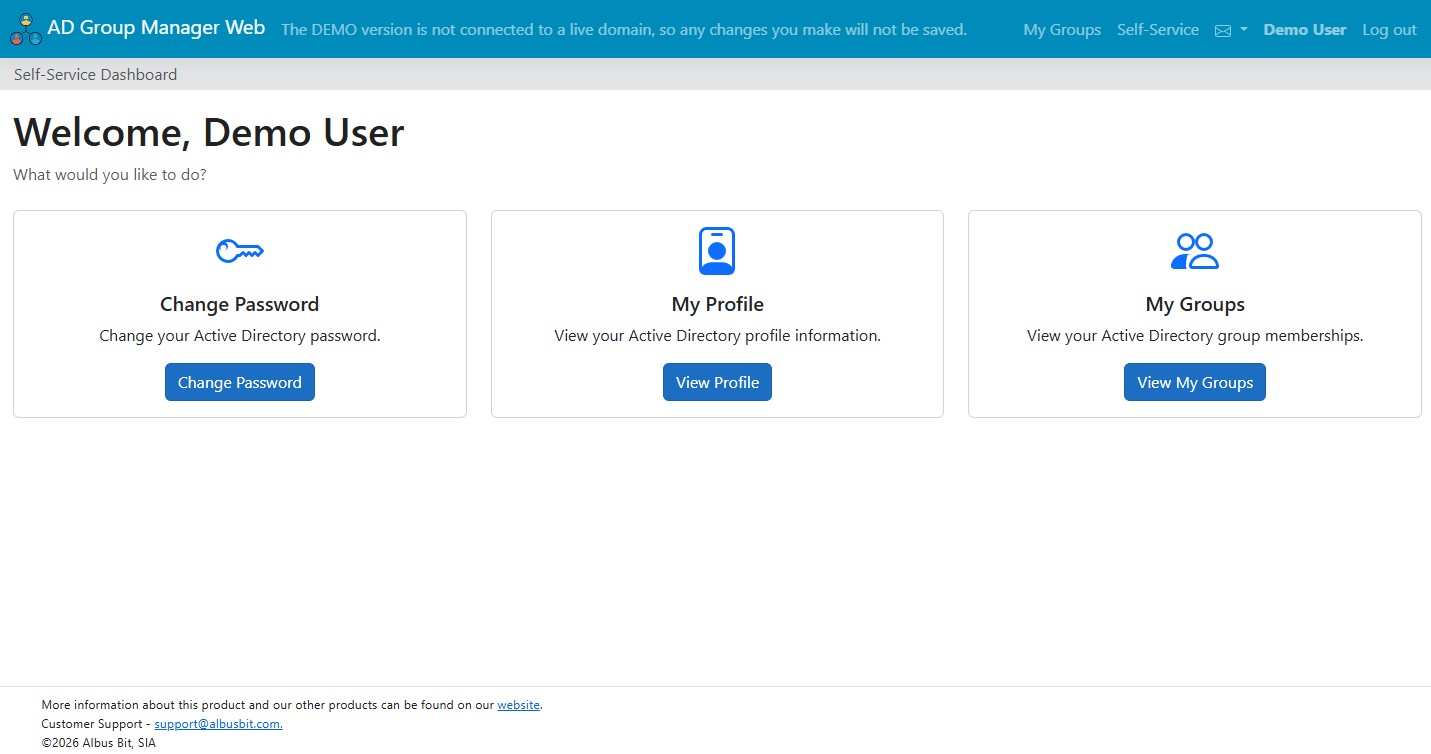
The dashboard shows a card for each feature your administrator has enabled. If a card is missing, the administrator has turned that feature off.
Change Password
Use Change Password to change your own Active Directory password from the browser. This is the everyday case — you know your current password and simply want to set a new one. (If you are locked out and cannot sign in at all, use the password reset flow instead.)
- Open Change Password from the dashboard or the Self-Service menu.
- The page shows your domain’s password policy (minimum length, complexity, and history requirements) so you know what a valid new password looks like.
- Enter your current password, then your new password twice.
- Submit. On success you see a confirmation, and the new password takes effect immediately.
If the change is rejected, the message tells you why — most often the current password was entered incorrectly, or the new password does not meet the domain policy (length, complexity, or reuse of a recent password).
My Profile
My Profile shows your own Active Directory profile — your name, department, title, email, and any other attributes your administrator has chosen to display. It gives you one place to confirm what the directory holds about you.
Editing your profile
If your administrator has enabled profile editing, the attributes you are allowed to change are editable on this page; everything else is read-only. The allow-list is defined by your administrator and enforced on the server, so only the fields they have opened up can be changed.
If your organization feeds Active Directory from an HR system, your administrator may keep the profile view-only — in that case you can see your details but not change them here, and updates flow from HR instead.
My Groups
My Groups lists the Active Directory groups you belong to. It pairs naturally with AD Group Manager Web: you see your memberships here, while the managers who own those groups manage them in Group Manager Web. If you need to join a group you are not in, contact the group’s manager — or, where your organization has enabled it, use Group Discovery & Access Request.
Next step
- Password Reset: End-User Guide — recovering your account when you cannot sign in at all.