Online Manual
Password Reset: End-User Guide
This page describes what a user sees when they reset a forgotten or locked-out Active Directory password through the Self-Service Portal. It is the flow that works before you can sign in — the whole point is that a user who cannot get into Windows can still recover their account.
Anonymous password reset must be enabled by your administrator for the “Forgot password?” link to appear. If it is not enabled, the link will not be shown.
The reset flow, step by step
1. Start the reset
On the sign-in page, click Forgot password?. Enter your username and submit.
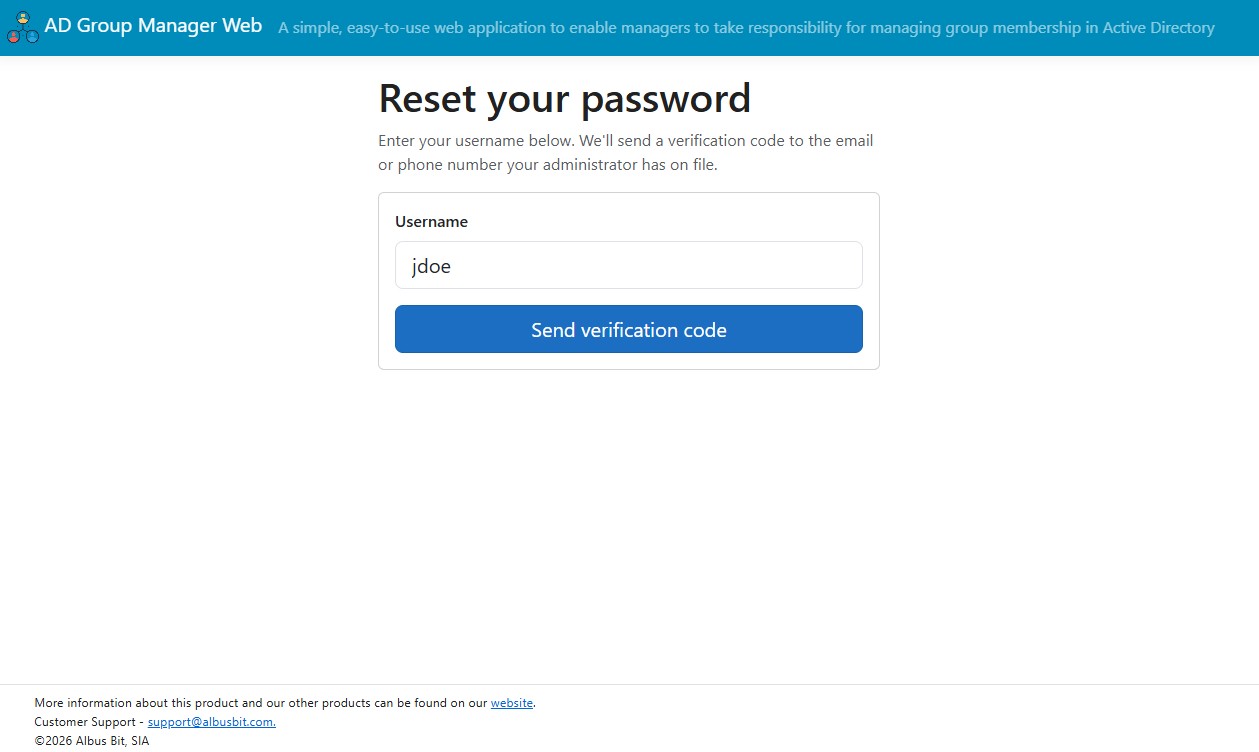
The portal sends a one-time verification code to the contact detail your administrator has on file for you — a personal or alternate email address, a mobile number by SMS, or both, depending on how your organization configured it. The code is delivered to a designated Active Directory attribute, so it can reach an address you can still open even when you are locked out of your work account.
For your security, the page looks and behaves the same whether or not the username exists or has contact details on file. This is deliberate — it prevents anyone from using the page to discover valid accounts. If you do not receive a code, see If you do not receive a code below.
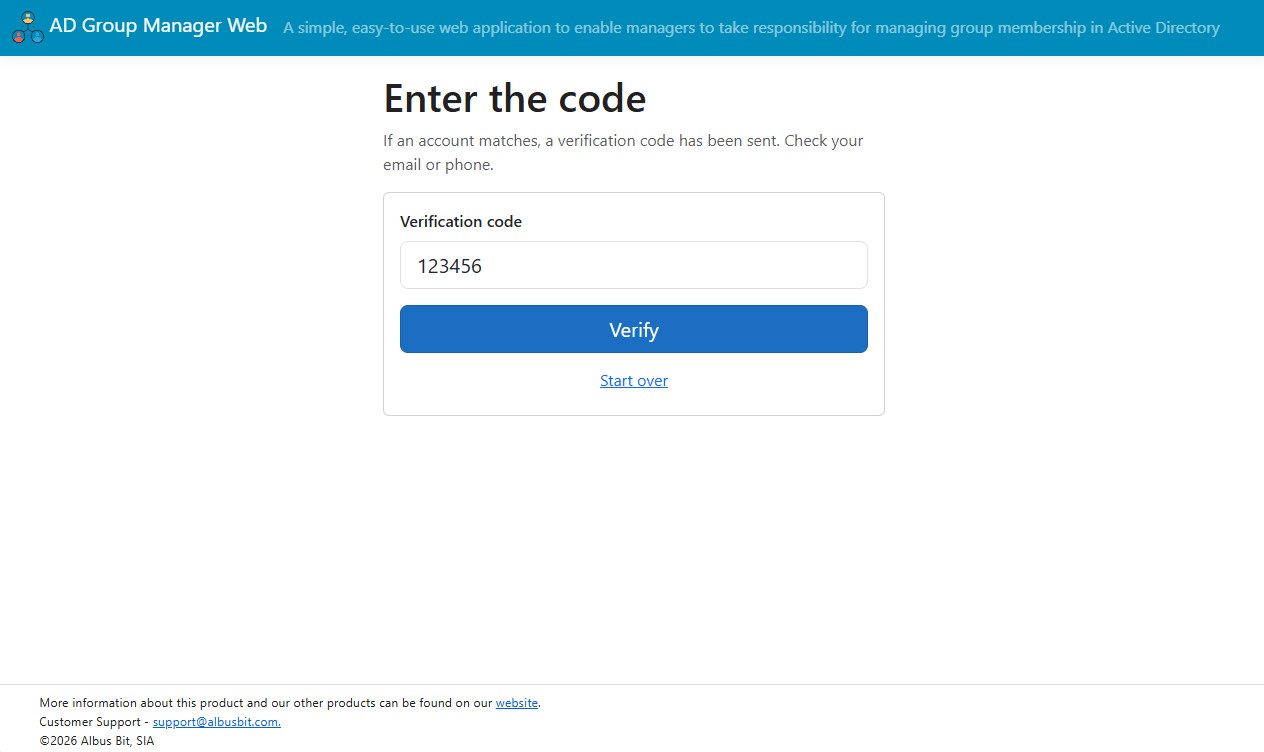
2. Enter the verification code
Enter the code you received. Codes are time-limited and expire after a few minutes (your administrator sets the exact window). After too many wrong attempts the attempt is locked, and you will need to wait before trying again.
3. Set a new password
Once the code is accepted, set a new password. It must meet your domain’s complexity policy (length, complexity, and not reusing a recent password). Submit, and the new password is written straight back to Active Directory — you can sign in with it immediately.
If you do not receive a code
The reset depends on having a reachable email address or mobile number on file in Active Directory. If a code does not arrive:
- Check the right inbox or phone. Codes go to the personal or alternate contact detail your organization configured, not necessarily your primary work mailbox (which you may not be able to open while locked out).
- Wait a moment and check spam. Email can take a minute and may land in a spam or junk folder.
- You may have hit a rate limit. If you have requested several codes in quick succession, the portal stops sending more for a short window even though the page still looks the same. Wait and try again later.
- Your account may not have contact details on file. For your security the page will not tell you this — it simply cannot deliver a code. In that case, contact your IT helpdesk to recover your account and to have your contact details added so self-service works next time.
Already signed in?
If you are not locked out and simply want to change your password, you do not need this flow — use Change Password from the Self-Service dashboard instead.